photo-enhancer-ai-online
7 Best Photo Enhancer AI Online Free Without Watermark for HD Results
Why Most Free Online AI Photo Enhancers Ruin Your Best Social Media Shots
The Frustration of Blurry and Pixelated Results
Most free tools are a classic bait-and-switch. You upload a cherished memory, wait for the progress bar, and end up with an image that looks like a wax museum figure. The AI over-sharpens edges while turning skin into a blurry, textureless mess. Honestly, I have seen so many people settle for these plastic-looking results because they think it is the best AI can do. If your preview looks unnaturally smooth or waxy, do not hit download—it will look even worse on a high-resolution smartphone screen.
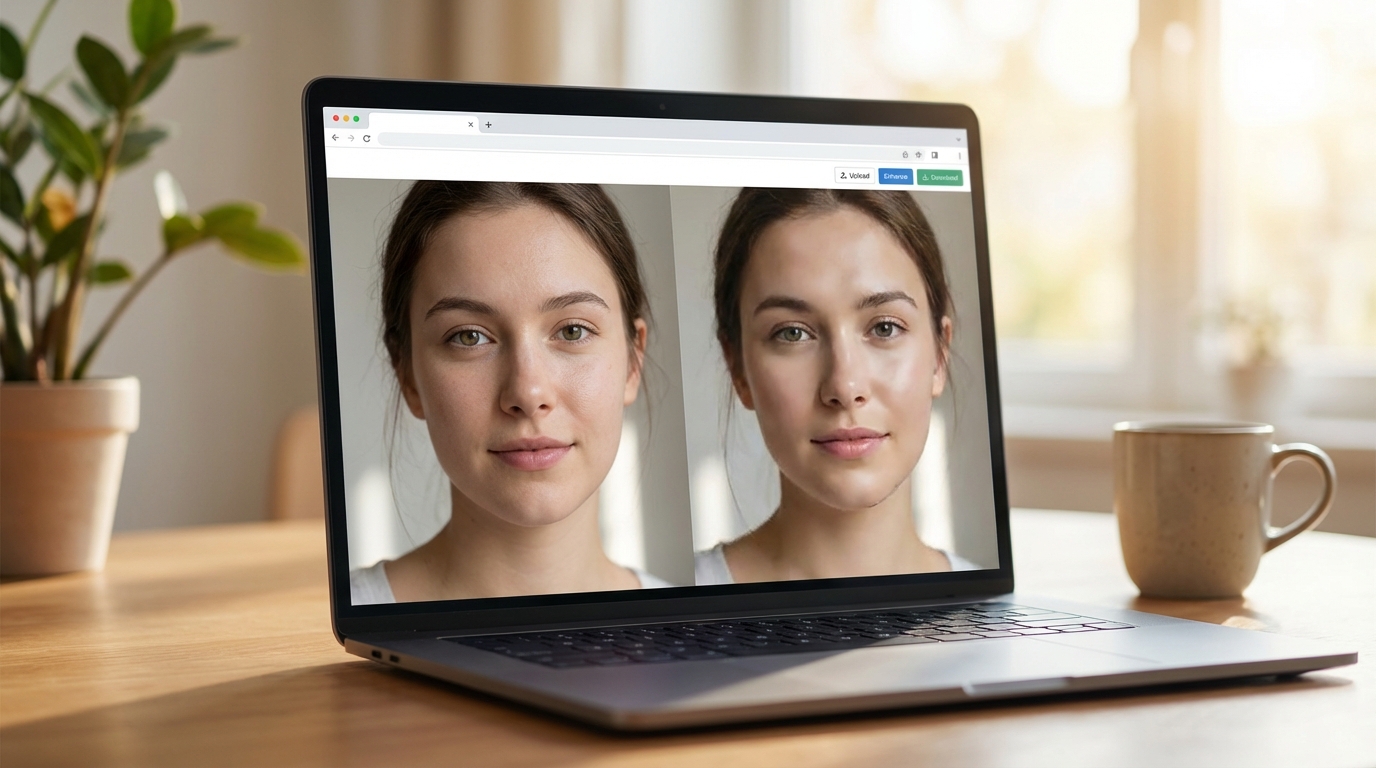
The Watermark Trap: Many tools claim to be free but hide a massive, intrusive logo right in the center of your export. This makes the photo completely unusable for Instagram or professional portfolios. If a site does not explicitly show you the export settings before processing, there is a high risk you are wasting your time. Success is very low when you are fighting against branding that covers the focal point of your shot.
Understanding Why It is Hard to Find a Quality Photo Enhancer AI Online
The High Cost of High-Resolution AI Processing
True HD rendering requires significant server power and expensive GPUs. This is the simple reason why most quality tools eventually ask for a subscription. Most free-forever websites use outdated, lightweight models that merely stretch pixels rather than intelligently reconstructing them. To be honest, I have seen people spend hours trying ten different free sites when a single professional-grade tool would have solved it in seconds. If the tool is too fast, it is likely just a simple filter, not real AI.
Restoration Limitations: Standard editors often fail miserably with old or physically damaged photos. They cannot distinguish between a crease in the paper and a facial feature. For these specific cases, you need deep-learning restoration models. If your photo has physical tears or heavy grain, a basic online enhancer is not the right tool for the job; you are just going to get a sharpened version of the damage.
Key Criteria for Choosing the Best Photo Enhancer AI Online for Free
Output Resolution and Sharpness Retention
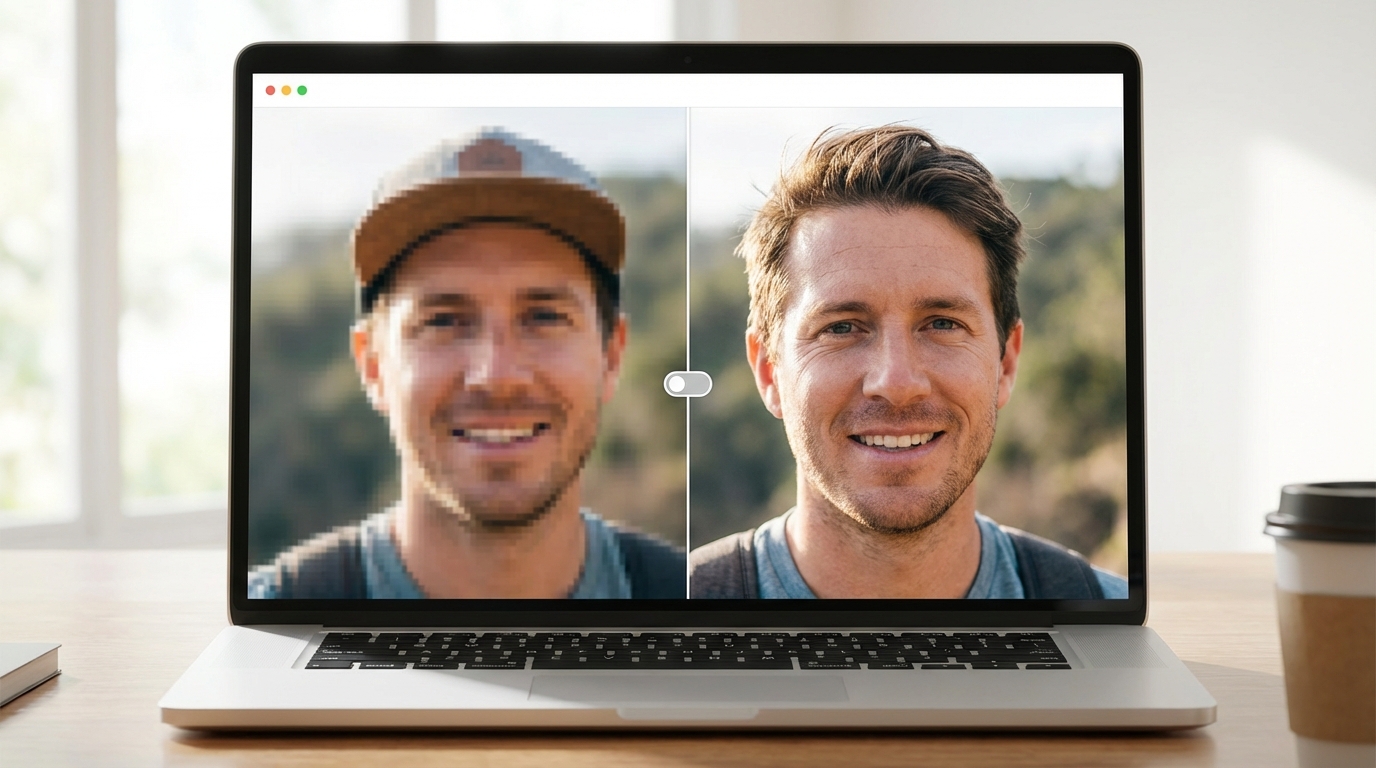
When evaluating a tool, the biggest pitfall is ignoring texture retention. A high-quality AI should allow you to upscale to 4K or even 16K while keeping pores, hair strands, and fabric details intact. If the tool removes the natural grain of a photo entirely, it loses its soul. You should look for a tool that offers a side-by-side comparison before you commit to the download.
Social Media Aesthetic: Achieving that clean INS-style look is about balance, not just sharpness. You want something that handles lighting and color depth alongside resolution. If a tool makes your colors look neon or overly saturated, it is going to ruin your aesthetic. In this situation, I actually suggest avoiding any tool that does not offer a natural or cinematic mode.
A Faster Way to Get Social-Ready HD Photos Without Watermarks
Achieving Natural Skin Smoothing and Facial Clarity
For travel or portrait shots, the goal is clarity that looks effortless. Modern AI can now isolate faces to apply localized sharpening, ensuring your eyes and smile are crisp while the background remains softly blurred. Say goodbye to the days of pixelated faces in your favorite vacation photos. If you are struggling with a blurry group shot, localized AI enhancement is the only way to save it without making everyone look like a cartoon.
One-click adaptation is a lifesaver for creators. Instead of manually tweaking sliders, look for tools that offer presets designed specifically for social platforms. This reduces trial and error and ensures your file size is optimized without sacrificing quality. To reduce the cost of constant experimentation, Koinavi can be a helpful reference for finding the right balance between speed and HD output.
3 Pro Tips to Maximize Your Photo Quality Instantly
Choosing the Right AI Model for Different Photo Types
Not all AI models are created equal. You must select a model tailored to your subject. Match your mode: use a portrait-specific engine for people to avoid weird facial distortions, and a landscape engine for scenery to enhance depth. Using the wrong model is the most common reason for a failed enhancement. If you use a general-purpose upscaler on a close-up face, the results are almost always disappointing.
Pre-Enhancement Prep: Before you even upload to an AI tool, do a basic crop and brightness adjustment. AI performs significantly better when it doesn't have to process unnecessary background clutter or guess details in total darkness. If your photo is severely underexposed, brighten it slightly first. Most people skip this and then wonder why the AI produced a grainy mess. KoiNaviをダウンロード
👉 在线免费生成画像生成ページへ移動
👉 在线免费生成テキスト返信ページへ移動