ai-portrait-generator-from-text
AI Portrait Generator from Text Free: Create Stunning Social Photos Without Login
Why Your AI Portrait Generator from Text Free Often Produces Unnatural Results
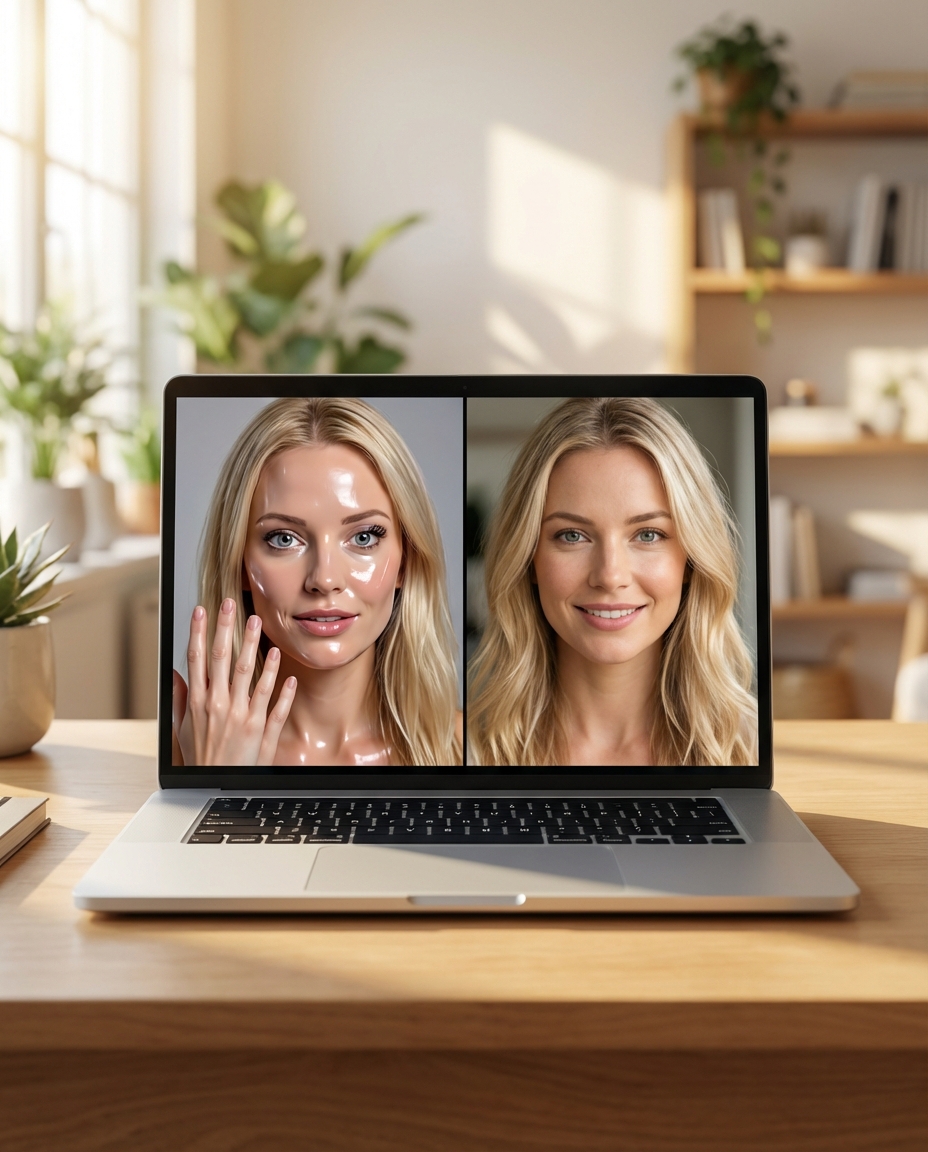
Many users dive into a search for an 'ai image generator from text free' only to be met with results that look like something out of a horror movie. The most frequent failure I see is the 'uncanny valley' effect: warped eyes, six-fingered hands, or skin that looks more like plastic than human texture. If your AI portrait looks like a distorted wax figure, it is fundamentally unusable for a professional or even a casual social media presence.
Common Failures: Distorted Features and 'Uncanny' Skin
Truthfully, I have seen many people spend hours trying to fix a bad generation when they should have just moved on; if the base model struggles with basic anatomy, no amount of prompt tweaking will save it. Forced logins and hidden paywalls also create a massive barrier, often baiting you with 'free' claims only to lock the high-quality, high-resolution downloads behind a credit card wall. To solve this, always verify if a tool offers realistic texture pre-sets or HD upscaling before you invest your time.
Understanding the Gaps in Your AI Image Generator from Text Prompt
If you are getting boring, generic photos, the problem is likely your prompt structure. A common mistake is writing vague descriptions like 'a beautiful woman in a park.' This gives the AI too much creative freedom, which usually results in a flat, stock-photo aesthetic that lacks any personality. In this situation, I actually do not recommend continuing with simple phrases if you want a high-conversion social media profile.
Vague Descriptions vs. High-Conversion Keywords
Saying 'Instagram aesthetic' or 'cinematic lighting' makes a world of difference. Ignoring style tags specific to platforms like Pinterest or LinkedIn is a major pitfall. If your prompt does not specify a lens type (like '85mm portrait') or lighting (like 'golden hour'), the AI defaults to a dull, flat light that screams 'fake.' The solution is to transition from simple descriptions to keyword-rich strings that dictate the mood and the technical 'camera' settings of the image.
How to Master AI Image Generator from Text Prompt Techniques
Mastering AI portraits is not about luck; it is about using a repeatable formula. One of the biggest risks is 'prompt fatigue,' where you keep changing everything and lose the core of what you wanted. If your process is chaotic, your success rate will be incredibly low. You need a structured approach to ensure the AI understands exactly who and what it is generating.
The Copy and Paste Prompt Formula
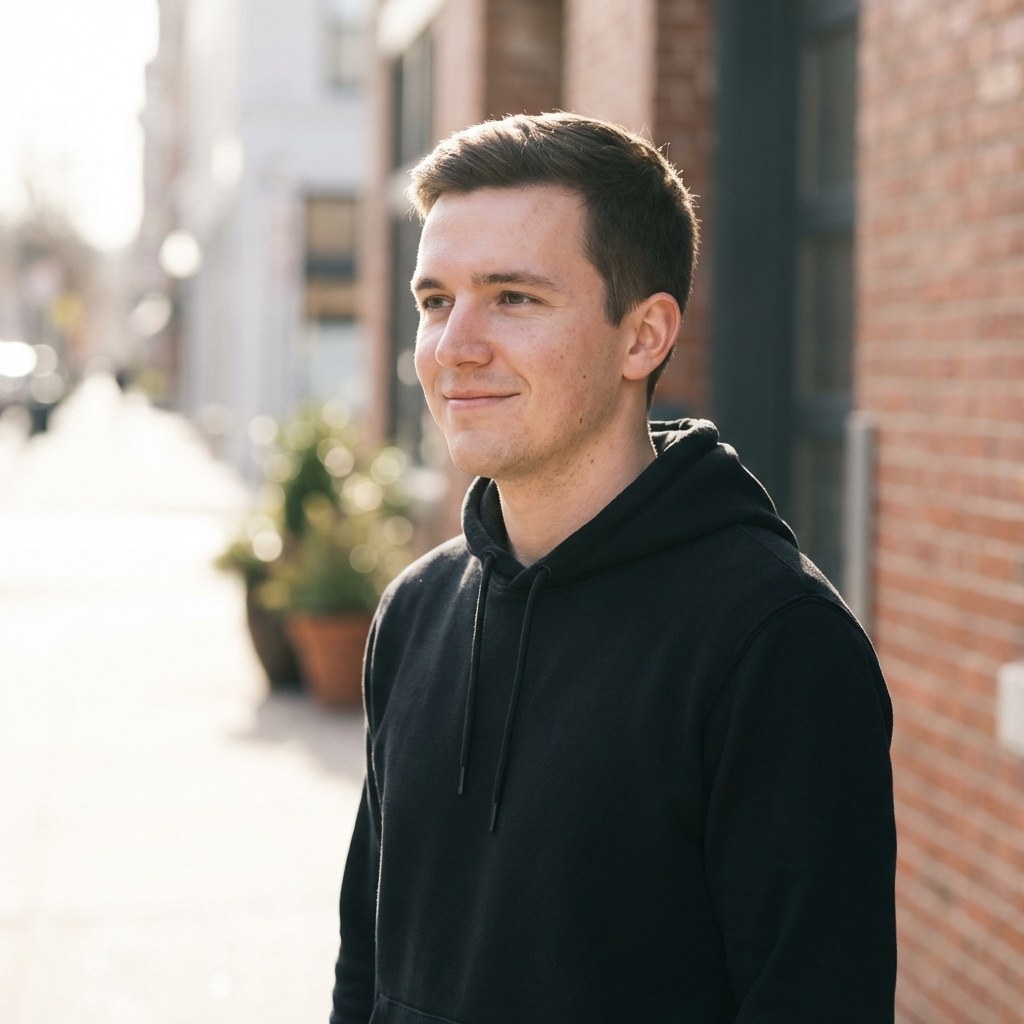
Use this simple logic: [Subject] + [Action/Pose] + [Outfit/Detail] + [Lighting] + [Style/Camera Angle]. For example, 'A young man with natural skin texture, wearing a minimalist black hoodie, soft side-lighting, 4k highly detailed portrait, street style.' Including specific phrases like 'natural skin texture' prevents the AI from over-smoothing the face, which is the most common giveaway that an image was generated by a machine.
Using an AI Image Generator from Text Free No Sign Up for Faster Results
Speed is everything when you are trying to maintain a content schedule. Wasting time on manual prompt engineering for every single detail is a rookie mistake. I have seen countless creators get frustrated because they cannot replicate a specific look they found online. This is where using a tool with built-in social media pre-sets becomes a game-changer.
Streamlined Generation with Social Media Pre-sets
Instead of guessing keywords, look for tools that offer 'automatic natural retouching.' These systems handle the complex background math of skin smoothing and lighting balance for you. If you are struggling to find a stable workflow, choosing a platform that skips the login process and provides HD enhancements out of the box is the best way to reduce your trial-and-error costs significantly.
Next Steps for Creating Your Perfect Social Media Portrait
Once you find a prompt that works, do not change everything at once. The biggest risk here is losing a consistent digital identity. If your LinkedIn photo looks totally different from your Instagram portrait, you lose credibility. I suggest keeping the core 'Style' and 'Lighting' keywords the same while only swapping out the 'Outfit' or 'Setting.'
Testing Small Variations in Your Prompt
Start by changing one keyword at a time to see how it affects the final output. This allows you to scale your presence across platforms while maintaining a consistent vibe. Using Koinavi can be a helpful way to bypass the frustration of complex prompt engineering while still getting high-quality, social-media-ready results without the usual sign-up friction.
👉 Online free generation 画像生成ページへ移動 or 👉 Online free generation テキスト返信ページへ移動
KoiNaviをダウンロード