remove-background-free
How to Remove Background Free Online: Get High Quality Results with No Sign Up
The Struggle to Remove Background Free Without Losing Quality
Low-Resolution Exports that Ruin Your Content
We've all been there: you find a tool that claims to be free, spend time uploading, only to realize the final export is a blurry, 300px mess. If a tool doesn't show you the output resolution upfront, it’s likely a trap designed to waste your time. Most 'free' versions of popular editors intentionally cripple the quality to force you into a subscription, which is a massive headache when you need a crisp image for social media.
The Frustration of 'No Sign Up' Lies: I have seen countless users get lured in by the promise of 'no registration,' only to be met with a mandatory email field or a 'one-credit' limit. In my experience, if the site feels overly cluttered with ads or hidden buttons, the quality will almost certainly be sub-par. Your best bet is to look for a clean interface that allows a direct download without the 'marketing bait' detour.
Why Most Tools Fail to Remove Background Free HD Effectively
Aggressive Data Compression
To keep server costs down, many free background removers use aggressive compression that leaves your subject with jagged, 'pixelated' edges. This is why many DIY projects look amateur. If you see 'noise' or artifacts around the hair or shoulders in the preview, stop right there. Don't waste time downloading it; those artifacts will only look worse when you place the subject on a new, clean background.
Poor AI Edge Detection: Standard free tools often struggle with 'transition zones' like wispy hair or translucent clothing. They usually resort to a hard cut that makes your subject look like a cardboard cutout. To avoid this, I recommend always checking the 'fine details' in the zoom view. If the AI is chopping off parts of your hair, the algorithm is simply too dated for high-quality professional work.

How to Remove Background Free from Image: 3 Proven Approaches
Browser-Based AI Tools for Immediate Use
For most quick tasks, browser-based AI is the superior choice because it doesn't require installing clunky software. However, you must be careful about which one you pick; focus on tools that utilize modern neural networks. While Built-In Mobile OS Features like the iPhone's 'subject lift' are convenient for memes, they lack the advanced edge-refining controls needed for a truly polished, high-resolution commercial look.
If you have a large batch of images, Open Source or Professional Software Free Tiers might seem tempting, but the learning curve is often a productivity killer. Unless you are a professional designer, don't get bogged down in manual 'pen tool' selections. Stick to automated AI solutions that offer high-definition exports, as your time is usually more valuable than the few minutes saved on a low-quality freebie.
Achieving the Perfect Social Media Look: Remove Background Free High Quality
Combining Removal with AI Enhancement
Simply removing the background isn't enough; the subject often loses its 'pop' once the surrounding context is gone. I've seen many people fail because they don't realize that lighting and sharpness need to be adjusted to fit the new environment. A high-quality tool should ideally refine the edges and sharpen the subject simultaneously so that the transition looks seamless rather than pasted on.
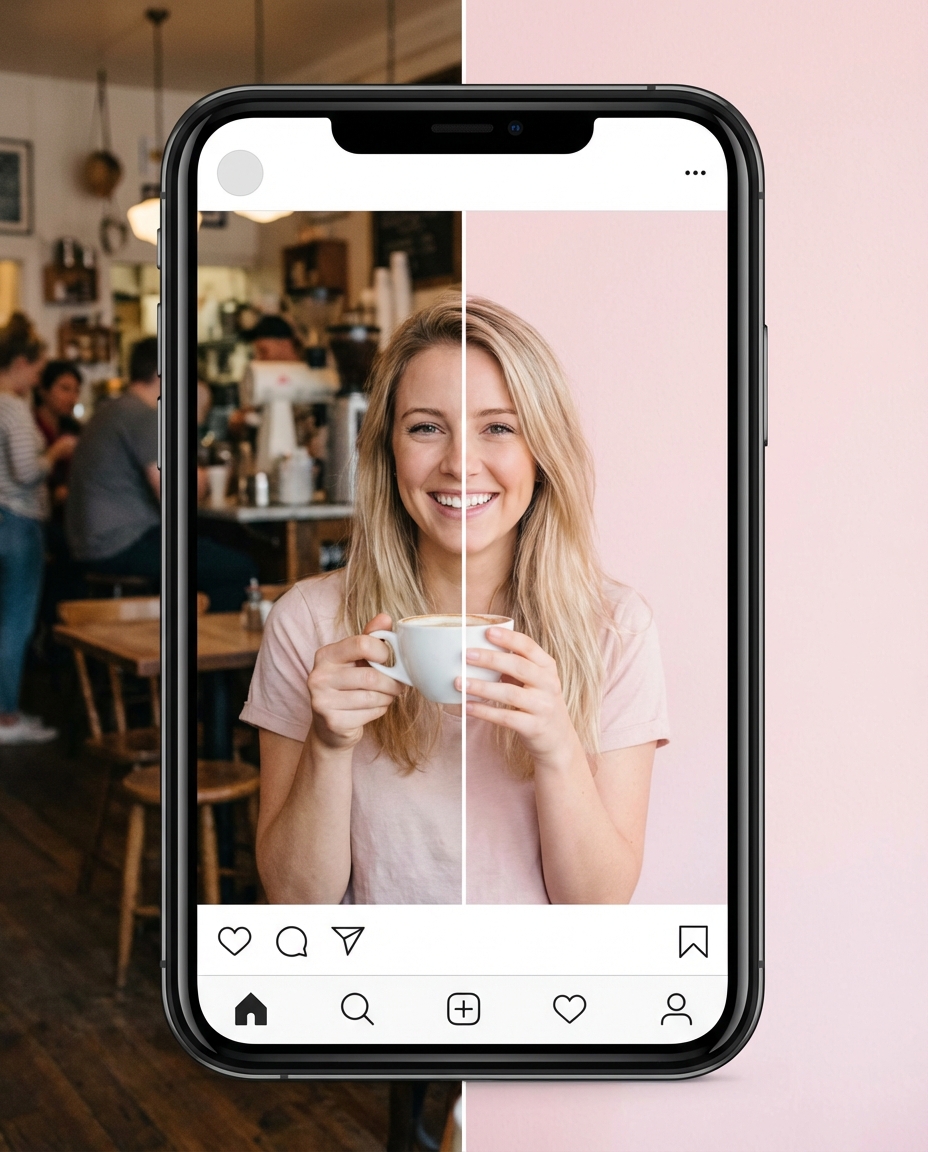
Instant Natural Color Optimization: To get that 'Instagram-ready' look, your subject needs to look natural against its new backdrop. Many modern AI tools now automatically apply a subtle color-match filter to ensure the subject’s lighting matches the new scene. Without this, your photo will always look like a cheap edit. If you're serious about your brand, don't settle for a tool that only does half the job.
Tips for Better Results When You Remove Background Free
Lighting and Contrast at the Source
No AI is a miracle worker. If your original photo has low contrast—like wearing a grey shirt against a grey wall—the edges will be a muddy disaster. I always suggest shooting with a clear distinction between the subject and the background. This simple step ensures the AI can 'see' the boundaries perfectly, which is the secret to getting that professional HD finish every single time.
Checking Export Settings for HD Quality: It’s a common mistake to hit 'Download' without checking the resolution settings. Many free tools hide the 'High Quality' toggle in a settings gear or a secondary menu. Always double-check that you are exporting at the original dimensions. Using tools like KoiNavi can significantly reduce the trial and error involved in getting that perfect, high-resolution cut-out without the usual quality loss. KoiNaviをダウンロード
👉 在线免费生成テキスト返信ページへ移動