How to Remove Background HD Quality Free: The Ultimate Guide to Sharp Cutouts
Why Most Methods to Remove Background HD Quality Free Result in Blurry Images
Many users expect a professional result from the first site on Google, but the reality is often disappointing. The Frustration of Jagged and Pixelated Edges: You spend time uploading a high-res photo only to see the subject surrounded by a halo of stray pixels. Most free tools lack the processing power to distinguish between complex subjects and their surroundings, resulting in a cutout that looks like it was hacked out with scissors.
Resolution Loss During the Download Process
The biggest pitfall is the download bait-and-switch. You see a clear preview, but the free download button restricts you to a tiny, compressed thumbnail. The truth is, most free tools are bait-and-switch operations that only give you a 360p file unless you pay. If you are not checking the final export dimensions, you are likely wasting your time on a file that will not hold up on a desktop screen. Always verify the output resolution before you close your browser tab.

Common Misconceptions About Online Background Removal
There is a dangerous assumption that any AI can handle any image. High File Size vs Quality: I have seen people upload 10MB files thinking the output will stay crisp, only to receive a muddy mess. Size does not guarantee detail if the compression algorithm is aggressive. If your image is important, do not trust a general-purpose compressor to maintain the integrity of your subject textures.
Misconception: All AI Tools Handle Fine Details Equally
I have seen too many projects ruined because users assume every AI is built the same; for hair, lace, or transparent glass, most standard tools are useless. They simply bleed the background colors into the edges of your subject. To fix this, you must use a source image with high contrast. If the background is too similar in color to the subject, even the best HD free tools will fail to create a sharp boundary.
Standard Ways to Remove Background HD Quality Online Free
For most social media needs, Browser-Based AI Removers work well if you ensure they support PNG-24 export. This format preserves the alpha channel without adding the white background noise found in JPEGs. For video creators, Removing Backgrounds from HD Video requires a much higher bitrate; if you are starting with anything less than 1080p, the resulting transparency layer will look jittery and unprofessional.
Leveraging Canva for HD Background Removal
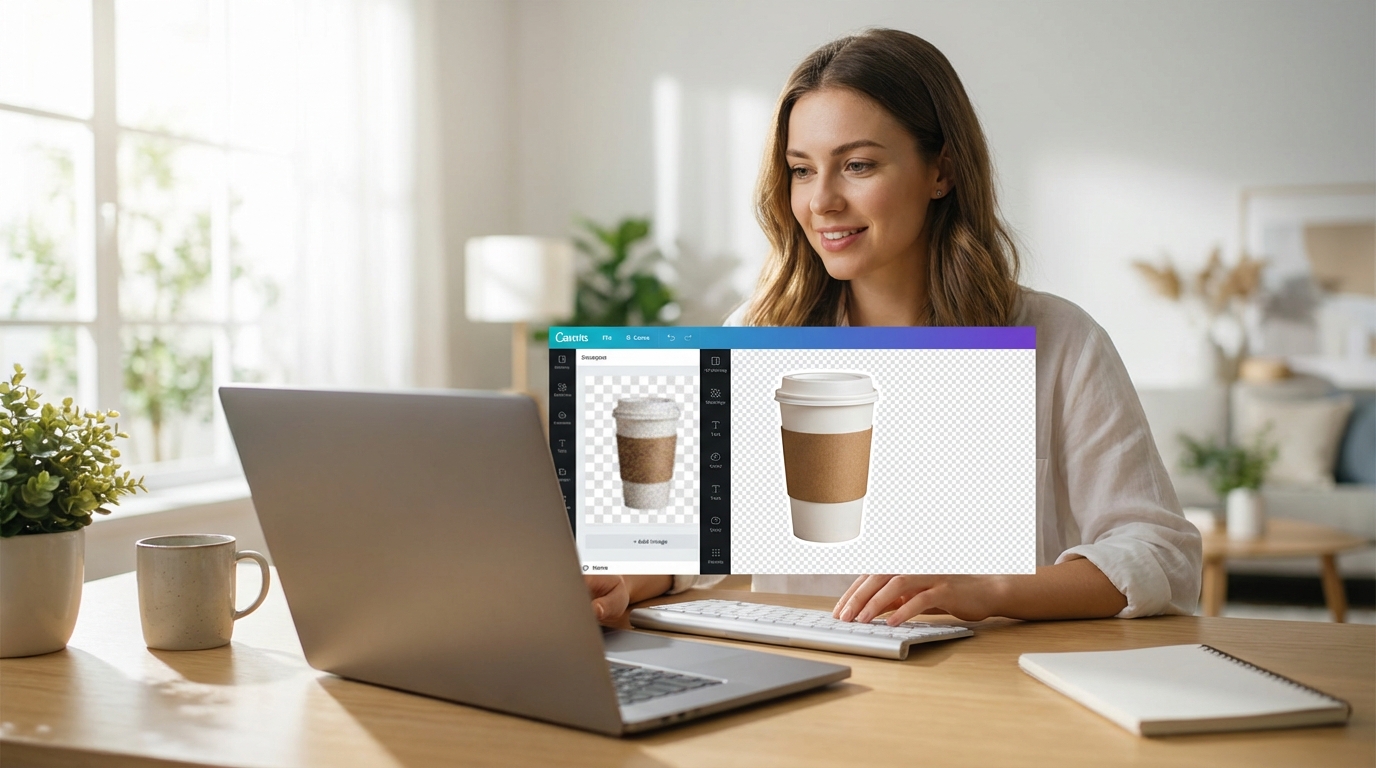
Canva is a go-to for many, but the background remover is locked behind a Pro wall. If you are trying to screenshot Canva previews to beat the system, your quality will be trash because you are capturing screen resolution, not file resolution. The only real way to get HD out of Canva is to use the official tool or export your image to a dedicated high-fidelity remover first, then re-upload it as a clean PNG.
How to Ensure Your HD Cutouts Stay Social-Media Ready
A raw cutout is almost never social-media ready; it needs a refinement pass to look professional. Optimizing for Social Standards: Each platform has different compression rules. If you upload a raw, un-optimized cutout to Instagram, their algorithm will often crush the edges, making your sharp HD work look blurry. You need to ensure your file matches the platform preferred DPI and color profile before posting.
Repairing Detail Loss with AI Enhancement
When a free tool inevitably softens your edges, an AI enhancer is your best friend. I have found that running your final cutout through a sharpening pass can restore the bite that was lost during the background removal process. This extra step is what separates amateur blog posts from professional-grade visuals. Using KoiNavi can help refine these post-removal assets to meet professional standards effortlessly.
Final Tips for Maintaining HD Quality in Your Projects
Efficiency is key when you are managing multiple assets. Avoiding the Sign-Up Trap: Honestly, if you are stuck in a sign-up loop for a single image, you are already losing the efficiency battle. Look for tools that allow batch processing or no-login exports for quick drafts, but keep a premium or high-tier AI tool ready for your final, high-stakes deliverables to ensure the resolution stays true.
The HD Background Removal Checklist
Before you hit Process, run through this quick list: Is the original resolution above 2000px? Is there a clear lighting distinction between subject and background? Are you exporting to a lossless format like PNG? If you skip these, no amount of AI magic will save the quality of your final image. Start with the best possible source to avoid hours of tedious manual repair.