Remove Background HD Quality Free: 5 Ways to Keep Your Photos Sharp
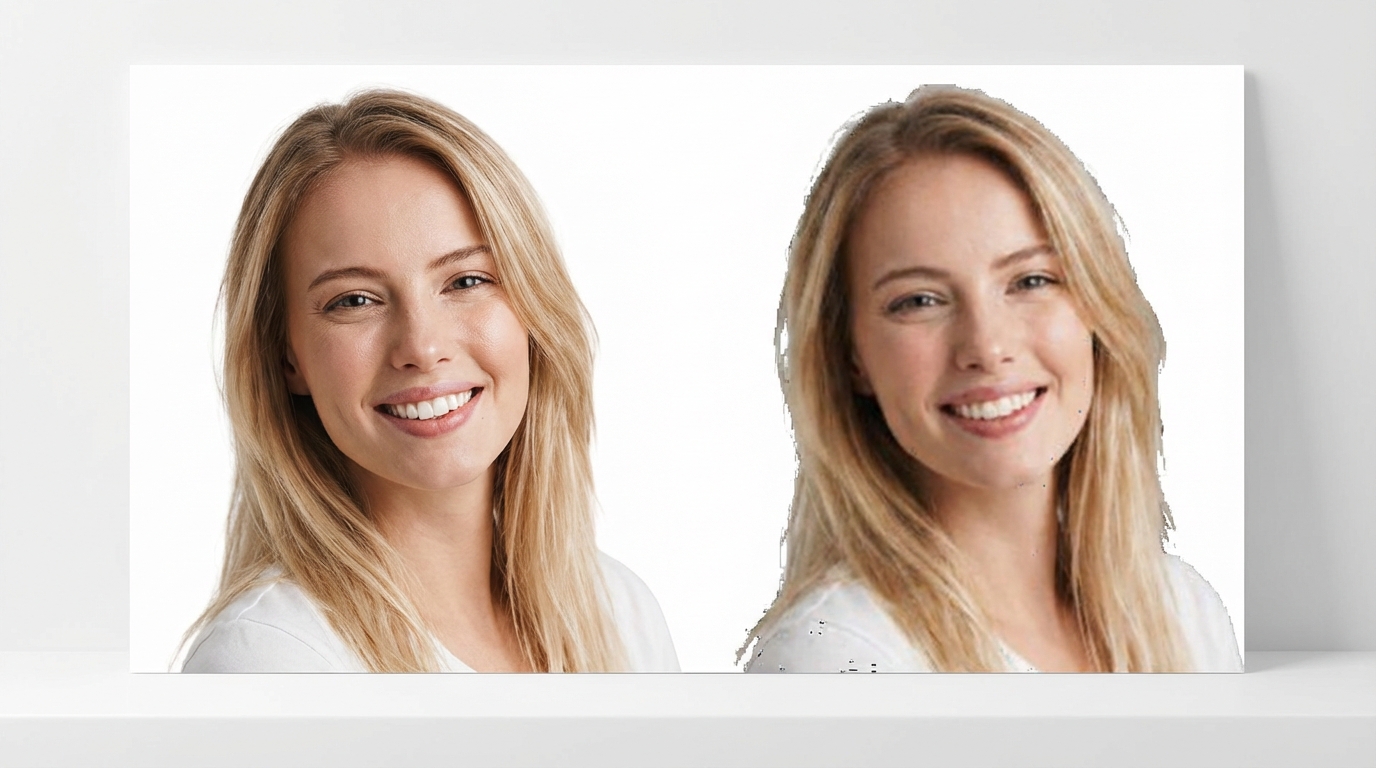
Why Your Photos Lose Sharpness After Background Removal
The Frustration of Pixelated Edges
It is incredibly annoying to upload a 4K portrait only to download a jagged, blurry mess. Most free online tools trick you by displaying a sharp preview but limiting the actual export to a measly 0.25 megapixels. Truthfully, if you see a 'Free Download' button that does not mention high resolution, you are likely getting a low-quality thumbnail.
Loss of fine details in complex subjects: fine strands of hair or sheer fabrics often turn into a pixelated blur because the software cannot distinguish them from the background. To avoid this, always check the final pixel dimensions before you close your browser window; if it is significantly smaller than your original file, your quality has been compromised.
Common Reasons for Low-Quality Results in Online Tools
Aggressive Image Compression
Servers are expensive, so many standard tools aggressively compress your files to save bandwidth. This results in 'halos' around your subject or blocky artifacts in what should be clean transparency. Honestly, I have seen too many creators spend hours masking just to have the final file ruined by a 50% compression rate.
Outdated edge detection algorithms: these older tools rely on simple color-matching, which fails miserably on high-definition shots where the background and subject share similar tones. If you are using a tool that does not explicitly mention AI-driven or neural processing, your edges will likely look like a staircase.
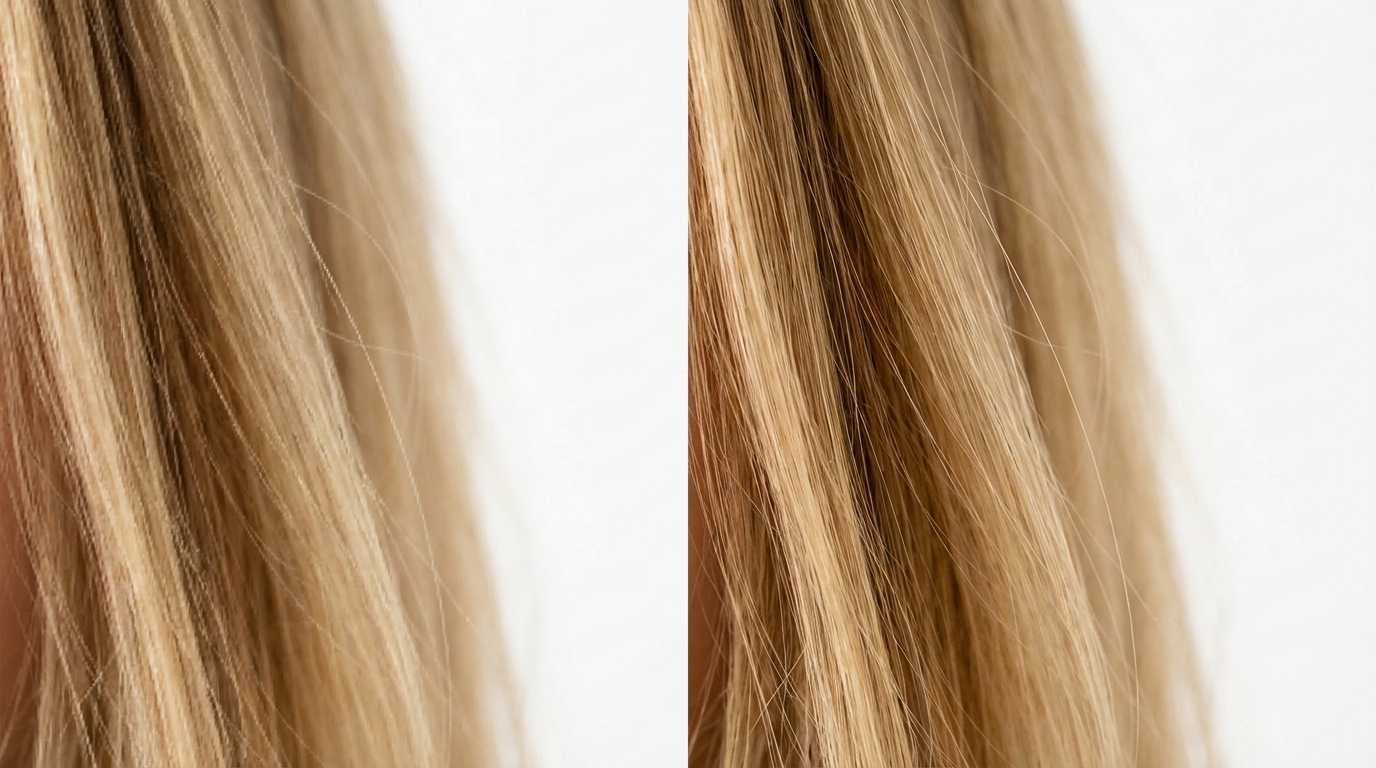
Effective Methods to Remove Background HD Quality Free
Using AI-Powered Online Platforms
Modern neural networks allow for precise masking that actually respects the original pixel count. While utilizing professional design suites like Canva is convenient, their free tier often restricts the high-quality background remover to 'Pro' users or reduces output resolution to maintain site performance. It is a common trap to assume all 'Pro' tools offer the same level of sharpness.
Desktop vs. Browser-Based Processing: processing your 4K or large PNG files locally or through a high-end AI API is generally more stable than browser-based tools that might crash under the load. If you are serious about keeping every pixel, choose a dedicated platform that prioritizes 'Original Quality' over sheer processing speed.
How to Enhance Resolution After Removing the Background
Restoring Detail with AI Upscaling
If you have already processed a photo and the edges look soft, all is not lost. Restoring detail with AI upscaling can recover those HD details and fix blurry edges in one click. Many users waste time re-doing the extraction, but a quick pass through an enhancer is often enough to save the shot from the trash bin.
Optimizing for social media aesthetics: social platforms often add their own layer of compression, so starting with an ultra-sharp transparent file is non-negotiable. If your background removal looks 'cut out,' use a subtle AI blend to ensure your high-definition photos do not look like cheap stickers when posted on Instagram or LinkedIn.
Best Practices for Saving and Exporting HD Transparent Images
Selecting the Right File Format
The most common mistake is choosing the wrong export format after the background is gone. You must use PNG or WebP to ensure transparency is maintained without losing original HD data. Saving as a high-compression JPG will not only lose your transparent background but will also introduce noise that kills the professional look.
Verifying resolution before final use: this is your last line of defense. Always open the file properties to confirm the pixel width matches your original input. To streamline this workflow and ensure you never lose that crisp edge, tools like Koinavi can be a helpful reference for maintaining consistency across high-res projects. KoiNaviをダウンロード
👉 在线免费生成画像生成ページへ移動
👉 在线免费生成テキスト返信ページへ移動