How to Remove Background HD Quality Free Online: Best Tools Without Sign Up
Why Your Background Removal Looks Blurry or Pixelated
The Frustration of Low-Resolution Exports
Ever spent twenty minutes cleaning up a photo only to find the 'HD' download button is locked behind a paywall? I have seen so many creators get stuck here, where the 'free' export is actually a 360p thumbnail that looks terrible on a 4K display. If your image looks soft or pixelated the moment you drop it into a Canva project, the tool has already failed you. Hidden Watermarks and Mandatory Sign-ups: This is the most common bait-and-switch; say no to any tool that does not show you the final pixel count before you waste time on an account registration.
The Real Reason Most Free Tools Fail HD Quality
Aggressive Image Compression
Free servers often use aggressive compression to save on bandwidth costs, which is why your high-res 4K photo ends up looking like a low-quality screenshot. In my experience, if a tool processes your image in under a second, it is likely stripping away the 'sub-pixel' data needed for a professional finish. Low-Detail AI Masking: Most basic algorithms are too 'lazy' to handle complex edges like frizzy hair or fine lace. This results in the 'chopped-off' look that immediately screams amateur. To solve this, always choose tools that prioritize edge precision over rendering speed.
Best Ways to Remove Background HD Quality Online Free
Using AI-Powered Web Tools Without Sign Up
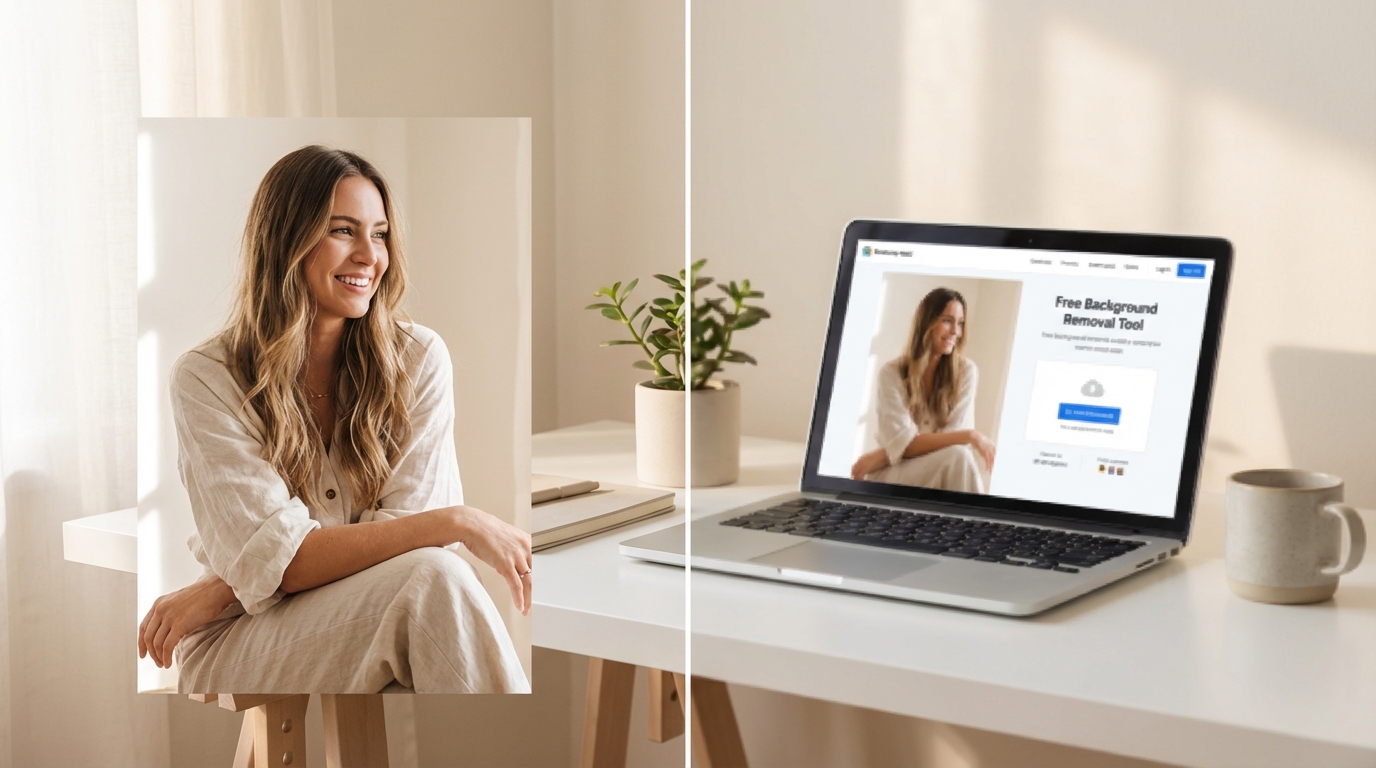
To keep your workflow fast and high-quality, look for browser-based AI tools that do not require an account. These often use 'Edge Computing' to process the image locally in your browser cache, which preserves the original resolution better than cloud-based compression. Handling High-Definition Video Backgrounds: For those working with TikTok or Reels, removing video backgrounds is even harder; you must ensure the tool supports 4K output, or your final render will look muddy on high-density mobile screens. Exporting in PNG and 4K Formats: Always verify the export format. A true HD tool should allow you to download a transparent PNG without losing the initial pixel count of your source file.
How to Achieve Professional Social Media Quality Post-Removal
Fixing Lackluster Clarity and Detail
Background removal is only the first step; a clean cutout can still look 'pasted on' if the lighting and edge smoothness do not match your new backdrop. I have found that most raw cutouts need a secondary pass of AI enhancement to restore skin textures or fabric details that get smoothed over during background extraction. Optimizing for Trending Instagram and TikTok Styles: To make your subject pop, you often need to re-sharpen the edges or apply a subtle outer glow to blend the lighting. This is where using a high-quality reference like Koinavi can help you minimize trial-and-error time and bridge the gap between a raw asset and a viral-ready post.
Step-by-Step Checklist for High-Resolution Assets
Final Quality Inspection Before Posting
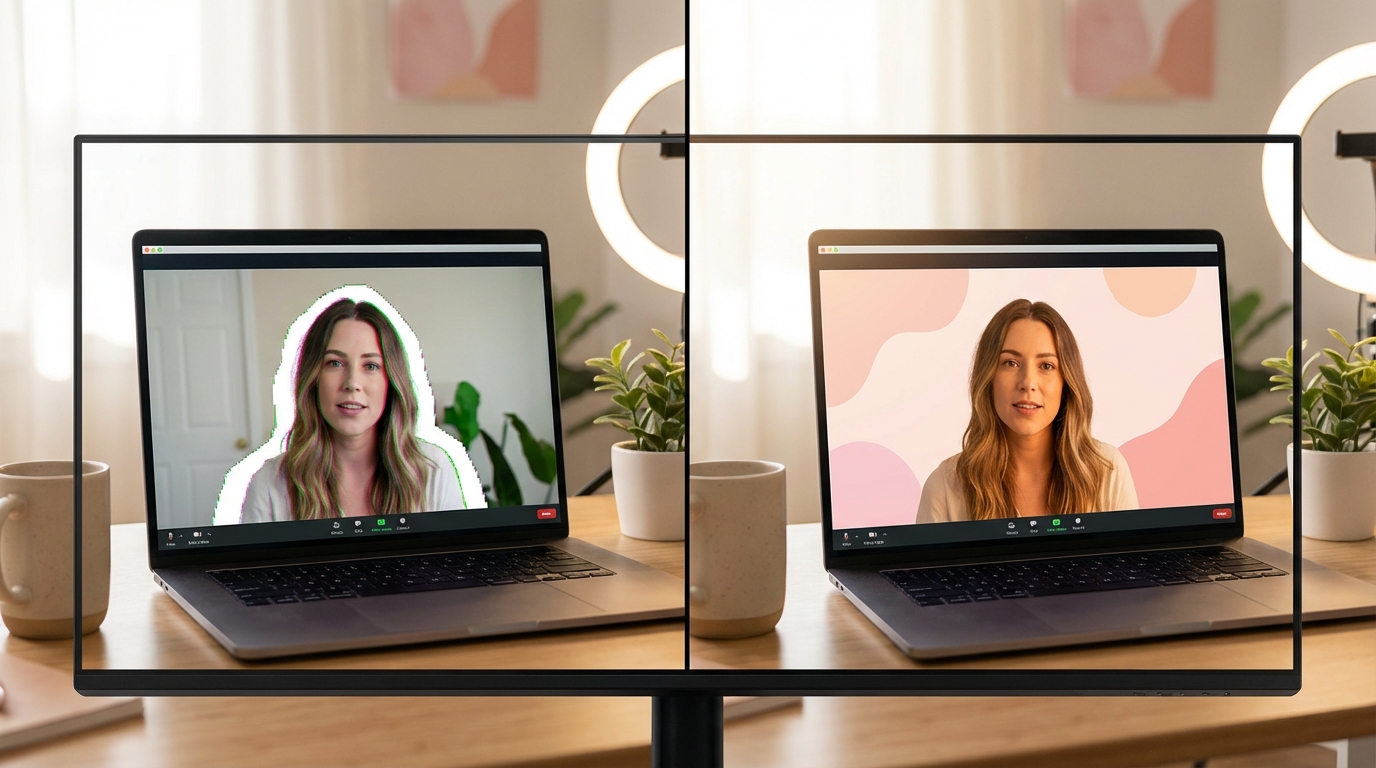
Before you hit upload, perform a 200% zoom check on the edges of your subject. Look for 'color bleeding' where the old background is still visible as a thin halo around the hair or shoulders. If the edges look like a jagged staircase, the resolution is too low and you should re-process. Check the color consistency—if the subject looks too blue or too warm compared to the new background, it will not feel 'grounded.' Following this simple inspection will save you from the embarrassment of a low-quality post that kills your engagement.
👉 Online free generation テキスト返信ページへ移動
KoiNaviをダウンロード