How to Remove Background from Photo HD Free Without Quality Loss
Why It Is Hard to Remove Background from Photo HD Free Without Losing Quality
The Frustration of Low-Resolution Exports
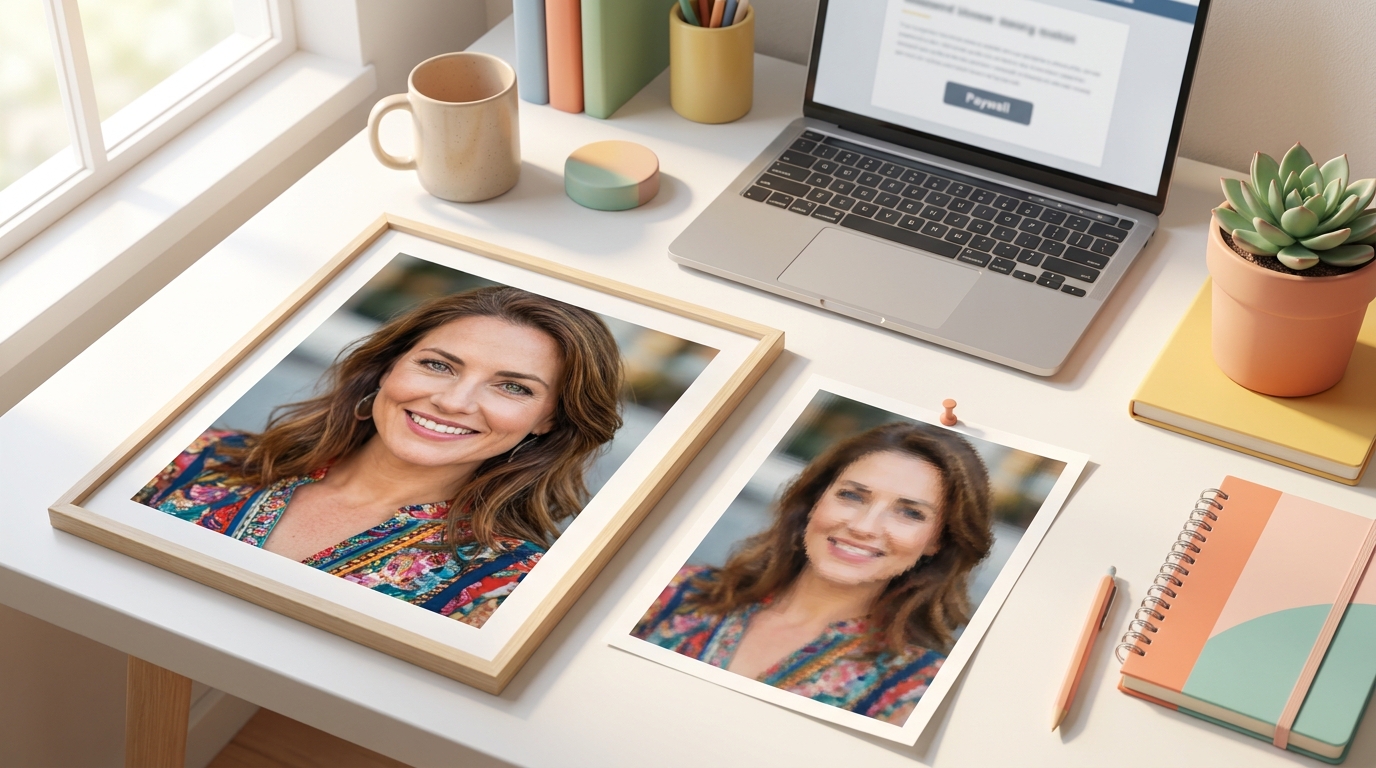
We have all been there: you upload a crystal-clear, high-resolution portrait to a free tool, only to find that the download button offers a pixelated, 600-pixel thumbnail. Truth be told, I have seen so many people settle for these blurry results just because they did not want to pay for a subscription. If the tool you are using hides the Full HD export behind a paywall after you have already done the work, it is a sign to stop using that platform immediately. You cannot fix a low-res export later; the data is simply gone.
Jagged Edges and Unnatural Cutouts: Another massive risk is the halo effect around hair or complex clothing. On a high-definition 1080p or 4K screen, these messy edges look incredibly amateur and sharp in all the wrong places. To avoid this, you need a workflow that prioritizes edge refinement over simple automation. Always check the zoom level at 100% before you decide a cutout is good enough for your professional portfolio.
Why Most Free Background Removers Fail to Maintain HD Resolution
Aggressive Image Compression
Most free online servers are designed to save bandwidth and storage costs, which means they aggressively compress your file the moment it hits their cloud. If you notice your image losing its texture or skin details, the server is likely stripping away data to save its own resources. In my experience, if a tool does not explicitly state it supports 4000px imports, it will probably downscale your image without telling you. This is why many free methods result in a flat, muddy appearance that ruins the HD aesthetic.
Limited AI Edge Detection for High Pixels: Many free algorithms are actually optimized for smaller web images, not high-resolution photography. They struggle to calculate the fine math required for a 20-megapixel edge. To get around this, you should look for tools that process the heavy lifting on your local device or use advanced neural networks. If your current tool is making your 1080p photo look like a 2005 webcam shot, it is time to move on to a higher-fidelity engine.
Reliable Ways to Remove Background from Image HD Online Free
Utilizing High-Precision AI Web Tools
To get a true HD result without spending a dime, you have to be strategic about which AI tools you choose. Some reputable platforms allow at least one high-resolution export for new users or offer daily credits. The trick is to find a browser-based tool that uses a high-bitrate export process. Honestly, I have found that most people fail because they use the first search result instead of looking for tools that specifically mention 1080p or 4K support. Look for the Full HD toggle before you even start the process.
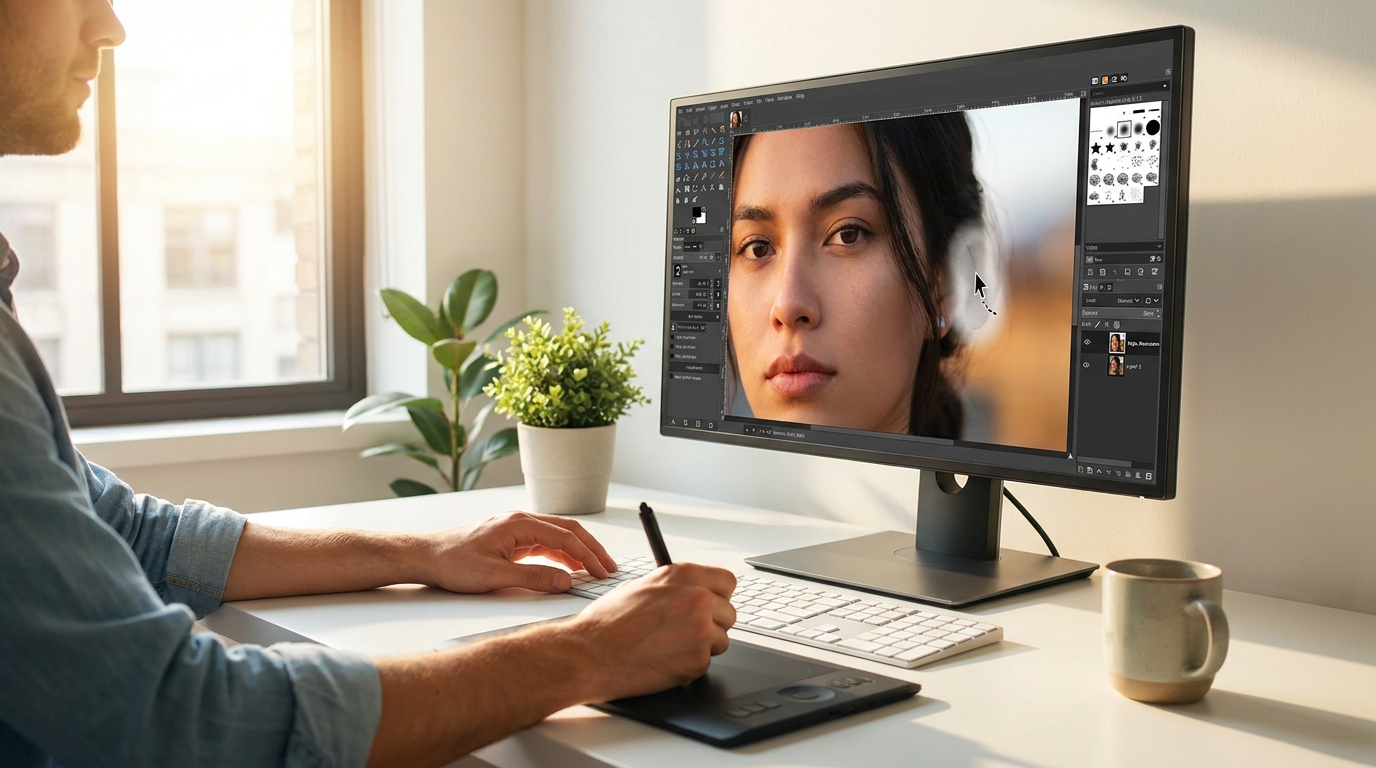
Manual Refinement Using Open-Source Software: If the AI gets 90% of the way there but ruins the edges, do not just accept the failure. You can take that raw cutout into open-source software like GIMP to perform a minor manual cleanup. Using a soft eraser or a layer mask to blend those tricky areas is the difference between a fake-looking crop and a professional asset. It takes an extra three minutes, but it preserves the professional quality your high-res source image deserves.
Achieving Perfect Social Media Results with AI Enhancement
Fixing Edge Blur and Pixelation Automatically
Even with a decent cutout, your image might still look a bit detached from its new background. This usually happens because the lighting or edge softness does not match. If you find yourself stuck with a cutout that has slightly blurry borders, you can use an AI enhancer to sharpen the transition. I often suggest Koinavi as a simple way to refine these visual details when standard removers leave the edges looking a bit rough. It helps bridge the gap between a raw cut and a polished final product.
Adapting HD Cutouts for Instagram and Social Media: Once you have your high-quality PNG, the biggest mistake is letting the social media app do the final resizing. To keep your quality, resize the image to the platform's exact specs (like 1080x1350 for Instagram) before you upload. This prevents the app's compression from turning your HD work into a pixelated mess. It is a simple step, but most people skip it and then wonder why their high-res photo looks terrible once posted.
Checklist for Preserving Image HD 1080p Quality
Verify Dimensions Before and After Processing
Before you close your browser tab, always check the file properties of the downloaded image. If your original was 3000x2000 and the output is 500x333, you have been tricked into a low-res preview. To ensure you are getting the real deal, compare the pixel dimensions manually. If they do not match, the tool has failed you, and you should try a different high-precision engine. Real HD requires maintaining that pixel count from start to finish.
Choosing PNG over JPG for Transparency: This is non-negotiable. If you export your cutout as a JPG, you lose the transparent background and introduce compression artifacts that kill HD quality. Always select PNG-24 for your final export. This format preserves the transparency and the sharp details of your edges without the blocky noise associated with JPG files. Staying disciplined with your file formats is the only way to keep your workflow professional and your images crisp.