How to Remove Background from Image Free: A Quick Guide for Social Media Creators
How to Remove Background from Image Free: A Quick Guide for Social Media Creators
The Struggle with Messy Backgrounds in Social Media Posts
Why a busy background kills your engagement
A messy background is the fastest way to make a professional photo look like a low-effort snapshot. Manual cutout fatigue: Trying to erase backgrounds pixel-by-pixel is a trap that wastes hours and usually ends in frustration. If your background is competing with your face for attention, you have already lost the viewer's interest. To fix this, stop trying to be a Photoshop pro and focus on clean isolation from the start.
Why Most Background Removal Attempts Look Unnatural
The challenge of complex edges like hair and fur
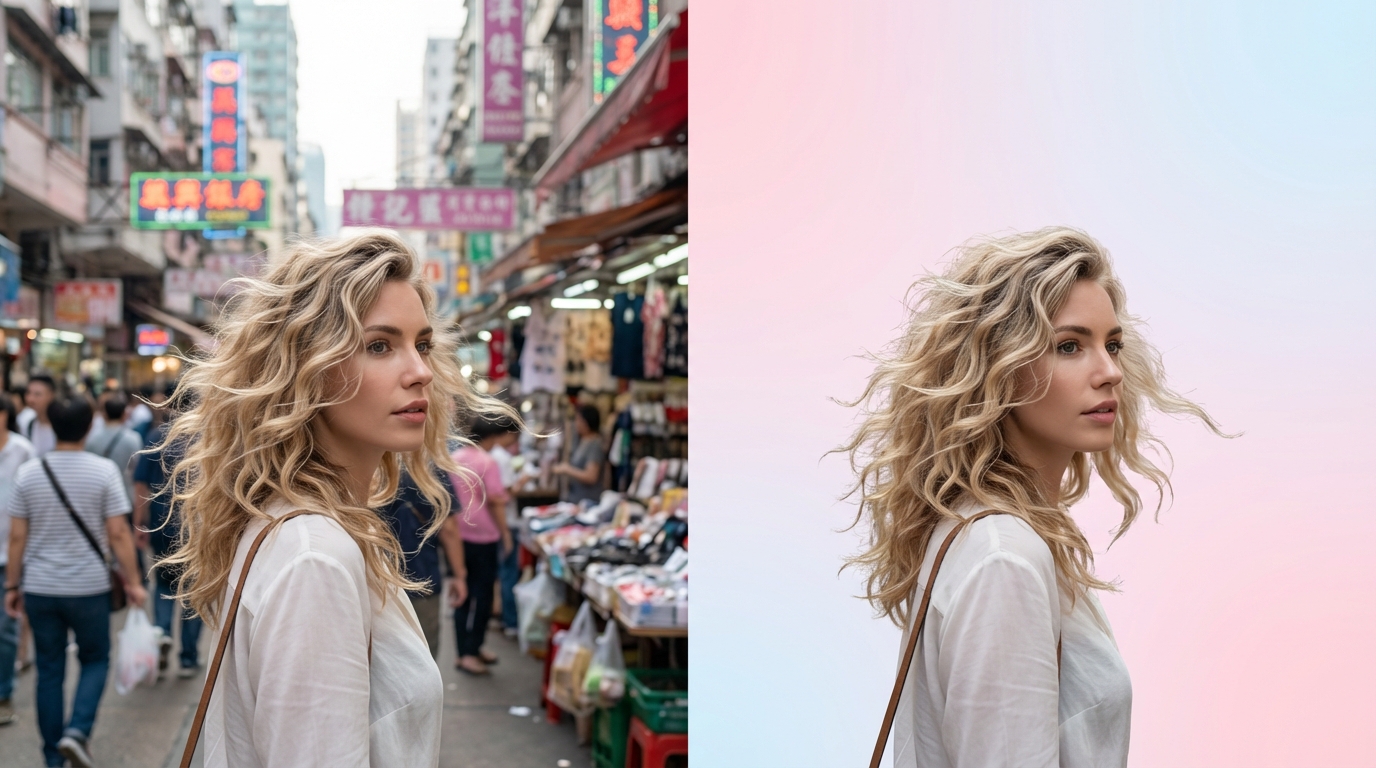
Most free tools leave a weird white 'halo' around your hair, making it obvious the photo was edited. Lighting mismatch: The subject looks like a flat sticker because the original shadows were removed but not replaced naturally. If the edges look jagged or blurry, the photo is simply unusable for high-end branding. You need to choose tools that recognize fine textures rather than just cutting a hard geometric line.
How to Remove Background from Image Free: Common Methods
Using built-in mobile features for quick edits
The iPhone long-press feature is great for a quick meme, but it often misses the gaps between your arms or strands of hair. Web-based tools: Fast but often sacrifice resolution for speed, leaving you with a pixelated mess. Honestly, if you are building a professional brand, these 'quick fixes' often look cheap. Use them for rough drafts, but switch to dedicated AI for the final post.
A Faster Way to Get Social-Ready Results with AI
One-click removal with automatic edge smoothing
High-quality AI doesn't just cut; it intelligently smooths the transition between the subject and the new background. Social-ready optimization: Applying filters immediately after the cut saves you from jumping between three different apps. I have seen creators spend all day on one post; this workflow cuts it down to seconds. Using a tool like Koinavi can help maintain that high-res look without the manual effort.

Tips for Achieving the Perfect Cutout Every Time
Prioritize high contrast between subject and background
AI isn't magic; it needs a clear boundary to work effectively. Resolution check: Don't post a blurry cutout just because the background is gone. If your shirt is the same color as the wall behind you, the AI will likely eat your shoulder. Always shoot with high contrast to ensure the software knows exactly where you end and the room begins.
👉 Free Online Generation 画像生成ページへ移動 KoiNaviをダウンロード